
Since WordPress 6.3, the block editor includes a Details block that hides content behind a summary line. It looks like an accordion item, so it is fair to ask: do you still need an accordion block? This comparison explains what the WordPress Details block does well, where it stops, and when a dedicated accordion is the better choice.
What the WordPress Details block is
The Details block uses the HTML details and summary elements. The summary is always visible; clicking it shows or hides the content below. It works without JavaScript, and you can put other blocks inside it.
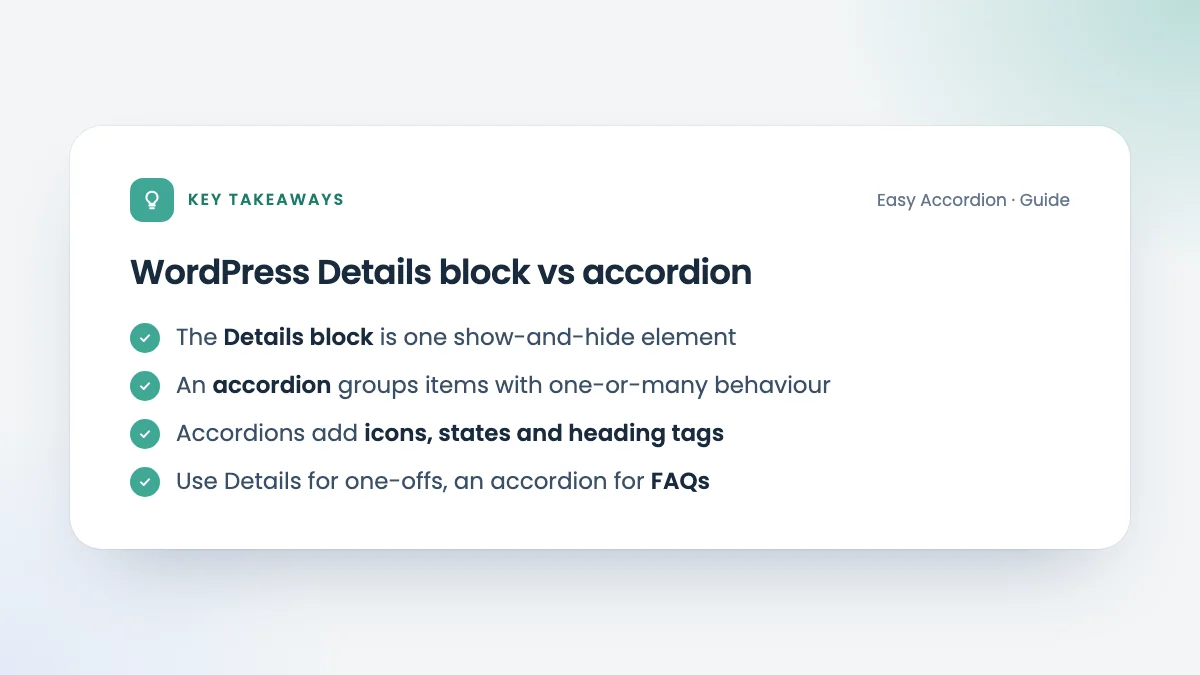
It is a single disclosure widget. Several Details blocks in a row look like an accordion, but each one works on its own.
What an accordion block adds
An accordion block treats a set of items as one component. With Easy Accordion Block, for example, you get:
- Grouped behaviour: one item open at a time, or many, and the option to allow all closed
- Open on load for any item
- Icons: more than 130 open and closed icons, on the left or right
- Styling: normal, hover and active states for the item, header, title and panel, with responsive spacing
- Heading tags for item titles, from H2 to H6
- Keyboard navigation between headers with the arrow keys, Home and End
- Nested accordions with separate styling for the inner level
With Pro you can add FAQ schema, deep links, instant search, Load more, badges and more.
Side by side
| Details block | Easy Accordion Block | |
|---|---|---|
| Built into WordPress | Yes | Free plugin |
| Works without JavaScript | Yes | Content stays readable |
| One item open at a time | No | Yes |
| Open on load | Yes, per block | Yes, per item |
| Custom icons | No (browser marker) | 130+ icons |
| Hover and active styles | Limited | Yes |
| Heading tag for titles | No | H2 to H6 |
| Arrow-key navigation | No | Yes |
| FAQ schema | No | Pro |
When the Details block is enough
Use the core Details block when:
- You need one or two simple “show more” sections
- Styling matches your theme without extra work
- You want zero extra plugins on the site
When to use an accordion block
Choose an accordion block when:
- You are building an FAQ or any list of more than a few items
- Only one item should be open at a time
- The design needs custom icons, states or spacing
- Item titles should be real headings for the page outline
- You want FAQ schema, search or deep links
Can you switch later?
Yes. Content inside Details blocks is made of regular blocks, so you can move it into accordion panels. Insert an Accordion block, add an item for each Details block, then drag the inner blocks across, or copy and paste them.
Accessibility notes
Both can be accessible. The Details block relies on native browser behaviour, which is solid but varies a little between browsers and screen readers. A well-built accordion block adds explicit ARIA states and keyboard navigation between items. See our accessible accordion checklist for what to look for.
How to add a Details block
- Click + in the editor and search for Details.
- Type the summary, the line that stays visible.
- Click below it and add the hidden content. You can insert other blocks here.
- In the sidebar, turn on Open by default if it should start expanded.
How to add an accordion block instead
- Install the free Easy Accordion Block plugin.
- Insert the Accordion block and type the first item’s title.
- Add content to its panel and click Add Accordion for each new item.
- Set the behaviour, heading tag, icons and styles in the sidebar.
Our guide on how to add an accordion in WordPress covers each step in detail.
Performance
The Details block needs no JavaScript, which makes it the lightest possible option. A well-built accordion block adds a small script and stylesheet, and Easy Accordion Block loads them only on pages that use an accordion. On a typical page the difference is negligible, so choose based on features and design rather than speed.
Frequently asked questions
Is the Details block an accordion?
Not exactly. It is a single show-and-hide element. Several in a row look like an accordion but do not behave as one group.
Does the Details block affect SEO?
Content inside it is part of the page HTML, so search engines can index it, as explained in does Google index content inside accordions.
Can I style the Details block?
You can change typography, colours and spacing with the block settings and theme styles. Custom icons and separate open-state styles need custom CSS.


Leave a Reply
You must be logged in to post a comment.