
An accordion is a list of headers that each open a panel of content. It is the simplest way to put a lot of information on one page without making visitors scroll through all of it. In this guide you will learn how to add an accordion in WordPress using the block editor (Gutenberg), with no shortcodes and no page builder.
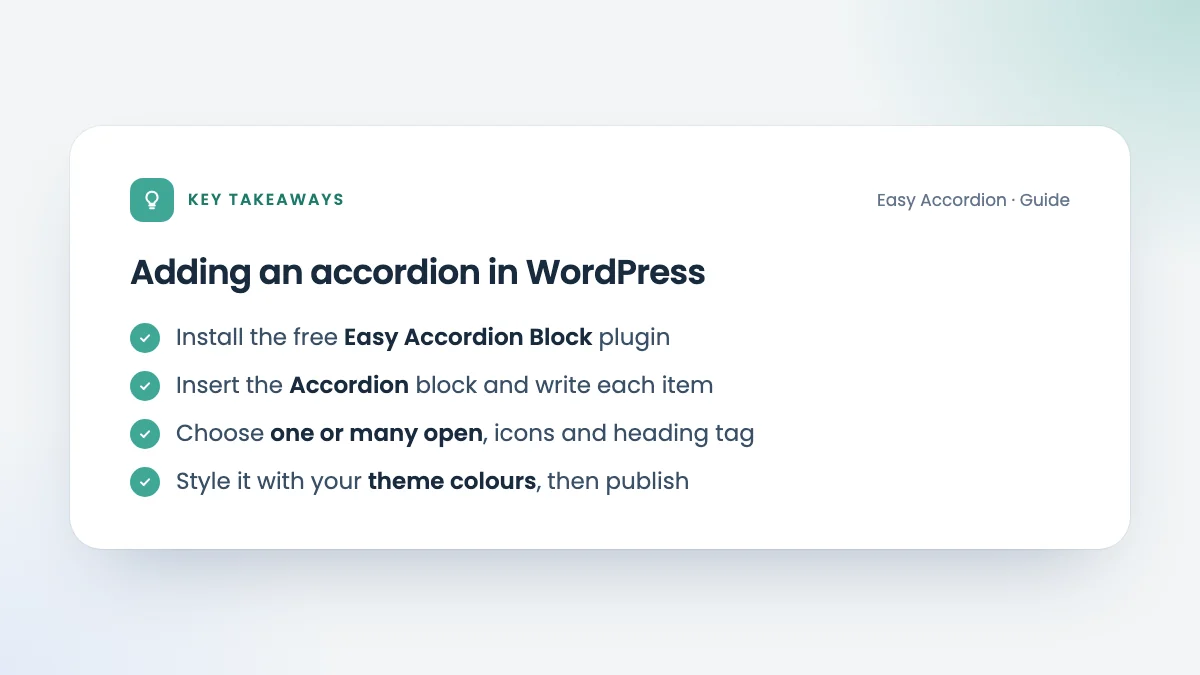
We will use the free Easy Accordion Block plugin, because it adds a native Accordion block that works like every other block in the editor. The same steps apply to any page, post or custom post type that uses the block editor.
What you need
- WordPress 6.6 or later, with the block editor enabled
- Any theme: block, classic or hybrid
- The free Easy Accordion Block plugin
If you prefer to read the reference first, the documentation covers every setting.
Step 1: Install the accordion block
- In your WordPress dashboard, go to Plugins → Add New.
- Search for Easy Accordion Block.
- Click Install Now, then Activate.
That is all the setup there is. There is no settings page to configure before you start.
Step 2: Insert the Accordion block
Open the page or post where the accordion should appear. Click the + button (the block inserter), type “Accordion” and click the Accordion block. You can also type /accordion on an empty line and press Enter.
The block starts with one item. Each item has two parts:
- The header: the clickable title, such as a question or a section name.
- The panel: the content that opens and closes under the header.
Step 3: Write your items
Click the header and type your first title. Then click inside the panel and add content. A panel is a normal block canvas, so you are not limited to text: you can add images, buttons, lists, columns, video or even another accordion.
Click Add Accordion under the last item to add more. To reorder items, select one and use the up and down arrows in the block toolbar, or drag it.
Tip: Keep titles short and specific. “How long does shipping take?” is easier to scan than “Shipping information”.
Step 4: Choose how the accordion behaves
Select the main Accordion block (not an item) and open the Settings tab in the sidebar. Two switches decide how it behaves for visitors:
| Setting | What it does |
|---|---|
| Allow multiple items open | On: visitors can expand several items at once. Off: opening one item closes the others. |
| Allow all items to be closed | On: every item can be folded away. Off: one item always stays open. |
Want an item to be open when the page loads? Select that item and turn on Make it active on load. This is useful for the most common question, or for the first step of a guide. You can see it working in the open on load demo.
Step 5: Pick a heading tag and icons
Under Heading Tag, choose H2 to H6, a paragraph or a div for the item titles. Pick the level that fits your page outline: if the accordion sits under an H2 section, H3 titles keep the structure clean for readers and search engines.
Next, choose the open and closed icons. The plugin includes more than 130 icons, and you can place them on the left or the right of the title. Try a plus and minus for FAQs, or a chevron for navigation-style lists.
Step 6: Style it to match your site
Open the Style tab. Every part of the accordion has its own controls:
- Item: border, radius, box shadow and background
- Head: padding, background and separator, with normal, hover and active states
- Heading text: typography and colours
- Body: padding, background and border
Your theme’s colour palette appears in every colour picker, so the accordion matches the rest of your site from the first click. Spacing and sizes can be set separately for desktop, tablet and mobile.
Step 7: Preview and publish
Click Preview to check the accordion on the front end, then Publish or Update. On the live page, visitors can open items with a click or tap, and keyboard users can move between headers with the arrow keys.
Common uses for an accordion in WordPress
Once you have added one accordion in WordPress, you will find uses for it everywhere:
- FAQ sections on product, pricing and support pages
- Product specifications and size guides
- Step-by-step guides and documentation
- Course outlines, event schedules and menus
If you are building an FAQ, the next post in this series walks through it in detail. You can also browse every option on the live demos page.
Accordion settings at a glance
| Where | Setting | Use it to |
|---|---|---|
| Accordion → Settings | Allow multiple items open | Let visitors compare several answers |
| Accordion → Settings | Allow all items to be closed | Let visitors fold everything away |
| Item → Settings | Make it active on load | Show one answer straight away |
| Accordion → Settings | Heading Tag | Keep the page outline correct |
| Accordion → Settings | Icons and position | Match your site’s conventions |
| Accordion → Style | Item, Head, Heading Text, Body | Match your design, per device |
Troubleshooting
The accordion does not open on the live site. A performance plugin may be delaying JavaScript. Exclude the accordion’s script from “delay JavaScript” options and clear the cache. The documentation explains how.
My style changes don’t show up. Clear your caching plugin, CDN and browser cache. Each accordion’s styles are printed with the page, so a cached page shows the old version until it is refreshed.
The titles look too big or too small. Check the Heading Tag first: an H2 inherits your theme’s H2 size. Then adjust the size in Style → Heading Text.
The accordion is too wide. Place it inside a Group block and set a content width, or use the alignment options in the block toolbar.
Frequently asked questions
Do I need a plugin to add an accordion in WordPress?
WordPress includes a Details block that shows or hides one piece of content, but it has no grouped behaviour, icons or styling options. An accordion plugin such as Easy Accordion Block adds a proper accordion with one-or-many behaviour, icons, styling and keyboard support.
Will an accordion slow down my page?
Easy Accordion Block loads its script and styles only on pages that contain an accordion, so pages without one load nothing extra.
Can I put an accordion inside another accordion?
Yes. Insert an Accordion block inside a panel to create a nested accordion, and turn on Style as Nested Accordion to style the inner level separately.

Leave a Reply
You must be logged in to post a comment.