
Some content has two levels: categories with questions inside, course modules with lessons, product lines with models. Nested accordions in WordPress let you show that structure without a page full of headings: an outer accordion for the groups, and an inner accordion inside each panel for the details. This guide shows how to build them in the block editor and how to keep them easy to use.
New to accordions? Start with how to add an accordion in WordPress, then come back here.
When nested accordions make sense
Nesting works when the content really has a hierarchy and people only need one branch at a time:
- FAQ pages with categories: Shipping, Returns, Payments, each holding its questions
- Documentation with sections and sub-topics
- Course outlines with modules and lessons
- Product specifications grouped by component
- Policies with sections and clauses
If people need to compare items across groups, or read most of the content, nesting gets in the way. A single accordion with good headings, or plain sections, will serve them better.
How to create nested accordions in WordPress
With the free Easy Accordion Block plugin:
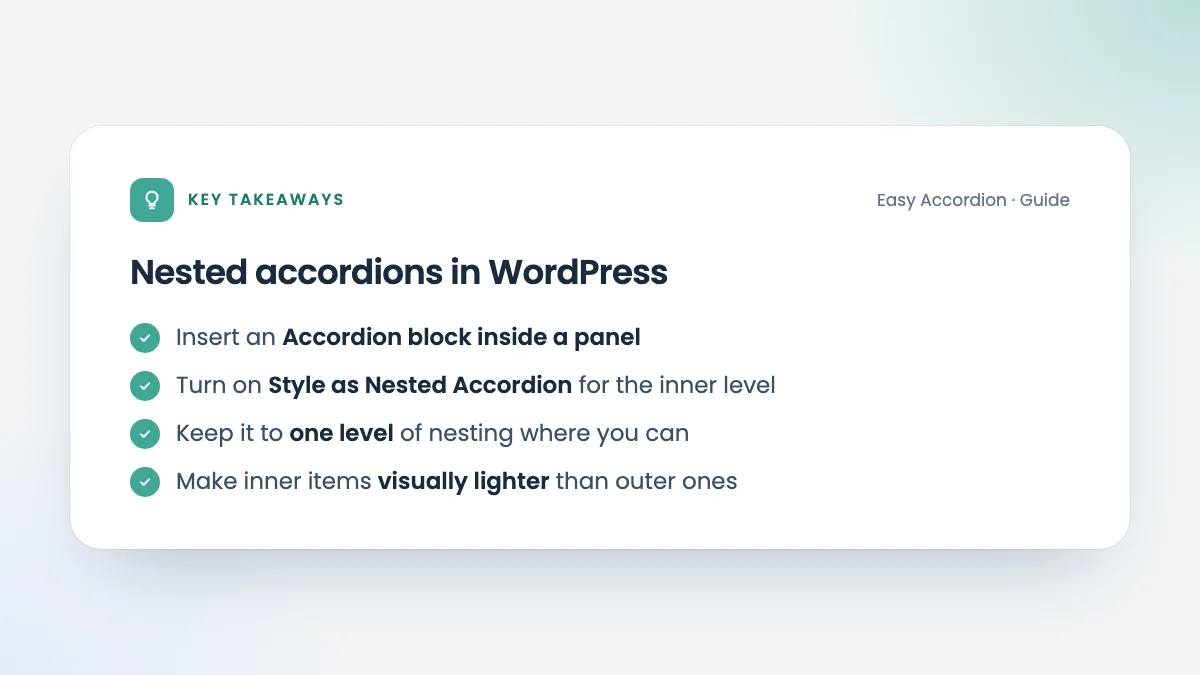
- Insert the Accordion block and create the outer items, such as “Shipping” and “Returns”.
- Click inside the first item’s panel. Because a panel is a normal block canvas, you can add any block there.
- Insert another Accordion block inside the panel. This is the inner accordion.
- Add the inner items, such as the questions about shipping.
- Repeat for each outer item.
You can find the same steps, with every setting, in the nested accordions section of the docs, and see a finished example in the nested accordion demo.
Style the inner level separately
By default, the inner accordion inherits the same settings you would give any accordion. To make the hierarchy obvious, select the inner Accordion block and turn on Style as Nested Accordion. You can then give it its own look without affecting the outer one:
| Level | Suggested style |
|---|---|
| Outer | Bold titles, more padding, a visible border or card |
| Inner | Smaller titles, less padding, hairline dividers |
| Icons | Plus / minus outside, chevrons inside, or smaller icons |
| Open state | Stronger highlight outside, subtle inside |
The goal is that anyone can tell at a glance which level they are on.
Behaviour settings for each level
Each accordion keeps its own behaviour settings:
- Outer accordion: usually one item open at a time, so the page stays short.
- Inner accordion: often allow multiple items open, so people can compare answers within a group.
- Open on load: consider opening the first outer group so visitors see the inner questions straight away.
Headings and accessibility
Pick heading tags that match the hierarchy. If the outer titles are H2, make the inner titles H3. Screen reader users can then move through the structure by heading level, and the page outline stays logical for search engines.
Easy Accordion Block keeps keyboard support working at both levels: Up and Down move between the headers of the same accordion, and Tab moves into an open panel and its inner accordion. IDs stay unique across both levels. Read more in our accessible accordion checklist.
Common mistakes with nested accordions
- Too many levels. Two levels are manageable. Three or more turn the page into a maze.
- Inner items that look the same as outer ones. People lose track of where they are.
- Hiding everything. If both levels start closed, visitors see only a few bars and no content. Open the most useful outer group.
- Long single items. If one inner answer is very long, consider a separate page and link to it.
Nested accordions in WordPress with Pro features
A few Pro features behave differently with nested content, which is worth knowing as you plan:
- Load more applies to the outer list and does not apply to nested accordions.
- Instant search looks at the items of the accordion it belongs to.
- Deep links open an inner item together with the outer item it sits in. See how deep links work.
Example: an FAQ page with nested accordions
Here is how a typical shop might structure its help page:
| Outer item (H2) | Inner items (H3) |
|---|---|
| Orders | Changing an order · Cancelling · Order status |
| Shipping | Delivery times · International shipping · Tracking |
| Returns | Return window · Free returns · Refund timing |
| Payments | Accepted cards · Invoices · Failed payments |
Open “Orders” on load, keep one outer group open at a time, and allow several inner questions open so people can compare answers within a group.
Frequently asked questions
How many levels of nesting can I use?
Technically you can nest accordions inside nested accordions, but one inner level is the practical limit for most visitors.
Can the inner accordion have different icons?
Yes. Each Accordion block has its own icon settings, and Style as Nested Accordion lets you give the inner level separate styling.
Does nesting affect SEO?
No, as long as the content is in the page HTML. Use heading levels that match the structure so the outline stays clear.



Leave a Reply
You must be logged in to post a comment.