
Collapsible content keeps long pages readable: people see the outline first and open only what they need. There are four common ways to add collapsible content in WordPress, and each fits a different job. This guide compares them so you can choose quickly.
1. The Details block
WordPress includes a Details block. You write a summary line that is always visible, and the content below opens when the summary is clicked.
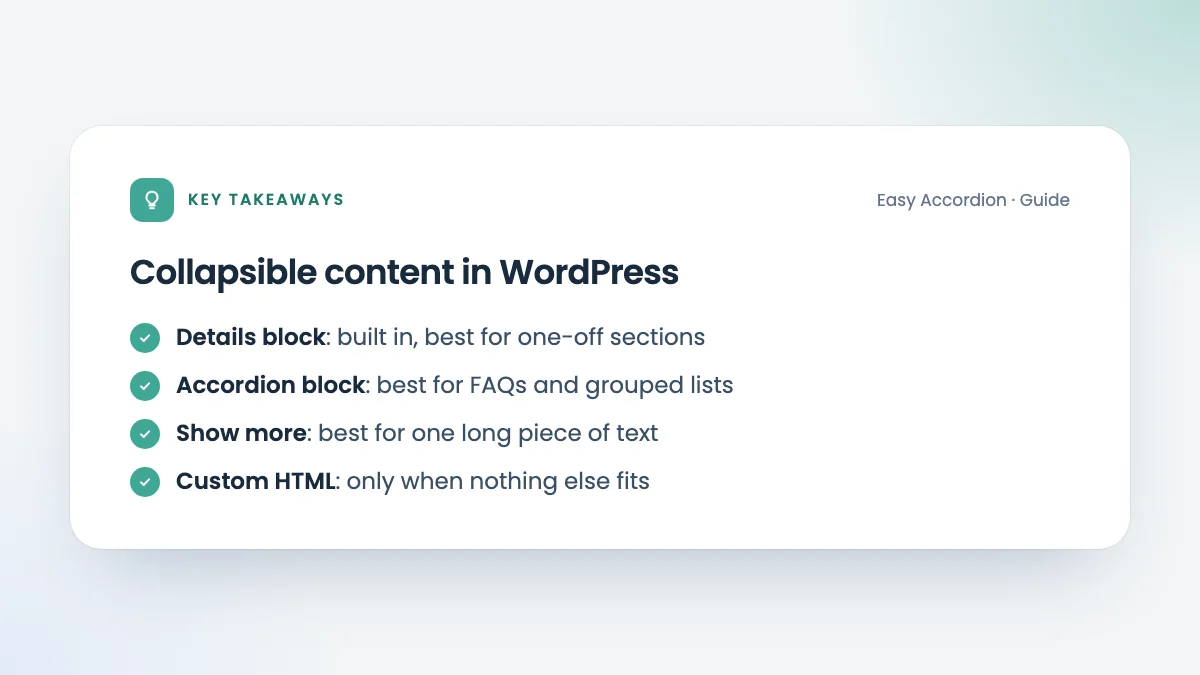
- Good for: one or two optional sections, such as a spoiler, a transcript or extra notes.
- Strengths: built into WordPress, works without JavaScript, can hold other blocks.
- Limits: each block works on its own, so there is no “one open at a time”, and the icon and open-state styling are basic.
We compared it in depth in WordPress Details block vs accordion block.
2. An accordion block
An accordion block treats a set of items as one component. With Easy Accordion Block, for example:
- Good for: FAQs, specifications, documentation, any list of more than a few items.
- Strengths: one-or-many behaviour, open on load, more than 130 icons, full styling per state and per device, heading tags for titles, keyboard navigation and nested accordions.
- Limits: needs a plugin, which loads a small script and stylesheet on pages that use it.
See the step-by-step guide on adding an accordion in WordPress.
3. A Show more / Read more button
Sometimes you have one long piece of content, such as a biography, a product description or legal text, and you want to show the first part with a button to reveal the rest.
- Good for: a single long block of text or media.
- Strengths: keeps the start of the content visible, which is better for reading than a closed panel.
- Limits: not designed for lists of questions.
The Pro Unfold block in Easy Accordion Block does exactly this: you set a visible height, and the content folds behind a Show More / Show Less button with your own labels and icons.
4. Custom HTML and CSS
You can write your own details and summary markup in a Custom HTML block, or build a collapsible section with a little CSS and JavaScript.
- Good for: unusual layouts that no block supports.
- Strengths: full control.
- Limits: you are responsible for accessibility, styling, editing and future maintenance, and non-technical editors can’t easily change it.
Collapsible content in WordPress: comparison table
| Need | Details block | Accordion block | Show more | Custom HTML |
|---|---|---|---|---|
| One optional section | Best | Good | Good | Possible |
| FAQ or list of items | Weak | Best | No | Possible |
| One long text | Weak | Weak | Best | Possible |
| One item open at a time | No | Yes | No | Code it |
| Custom icons and states | Limited | Yes | Yes (Pro) | Code it |
| Editor-friendly | Yes | Yes | Yes | No |
| No extra plugin | Yes | No | No | Yes |
How to choose
Ask three questions:
- Is it a list or one piece of content? Lists suit accordions; one long piece suits Show more.
- Do people need everything, or just part? If they need everything, don’t collapse it.
- How much styling do you need? For matching a brand closely, a dedicated block saves custom CSS.
Accessibility and SEO for any method
Whichever method you choose:
- The toggle must be a real, focusable control that works with Enter and Space.
- The open or closed state must be announced to screen readers.
- The content must be in the page HTML, not loaded only when opened, so search engines and assistive technology can reach it.
Our accessible accordion checklist covers the details, and does Google index accordion content explains the SEO side.
A quick decision guide
- Writing a single “read more” section? Use the Details block, or the Unfold block if you want the first part of the text to stay visible.
- Building an FAQ, specs list or guide? Use an accordion block with grouped behaviour and proper headings.
- Showing a long biography, review or legal text? Use a Show more button so readers see where the text starts.
- Need something no block offers? Only then write custom HTML, and test it with a keyboard and a screen reader.
Whatever you pick, keep essential information, such as prices and key benefits, visible without a click.
Frequently asked questions
What is the easiest way to add collapsible content in WordPress?
For one section, the built-in Details block. For several items or an FAQ, an accordion block is easier to manage and style.
Is collapsible content bad for SEO?
No. Content inside collapsible sections can be indexed when it is part of the page HTML, which is the case for all four methods above.
Can I put images and buttons in collapsible content?
Yes with the Details block, an accordion block and the Unfold block, because they can all hold other blocks.


Leave a Reply
You must be logged in to post a comment.