
A good FAQ section answers the questions that stop people from buying, booking or signing up. A bad one is a wall of text nobody reads. This guide shows you how to create an FAQ section in WordPress that is quick to scan, easy to maintain and friendly to search engines.
You will plan the questions first, then build the section with an accordion in the block editor. If you have never added an accordion before, start with how to add an accordion in WordPress.
Step 1: Collect the questions people really ask
The best FAQ questions come from your visitors, not from a brainstorm. Look in these places:
- Support emails and chat transcripts
- Comments, reviews and social media replies
- Questions your sales team hears before a purchase
- Search queries on your own site, and the “People also ask” box in Google for your topic
Write each question in the words your customers use. “Can I return an item?” works better than “Returns policy overview”.
Step 2: Group and order them
Aim for five to ten questions per section. If you have more, split them into groups such as Shipping, Payments and Accounts, with a heading for each group. Put the questions that block a decision first: price, delivery, refunds and compatibility usually belong at the top.
Step 3: Write short, complete answers
Each answer should work on its own, without the reader opening another item:
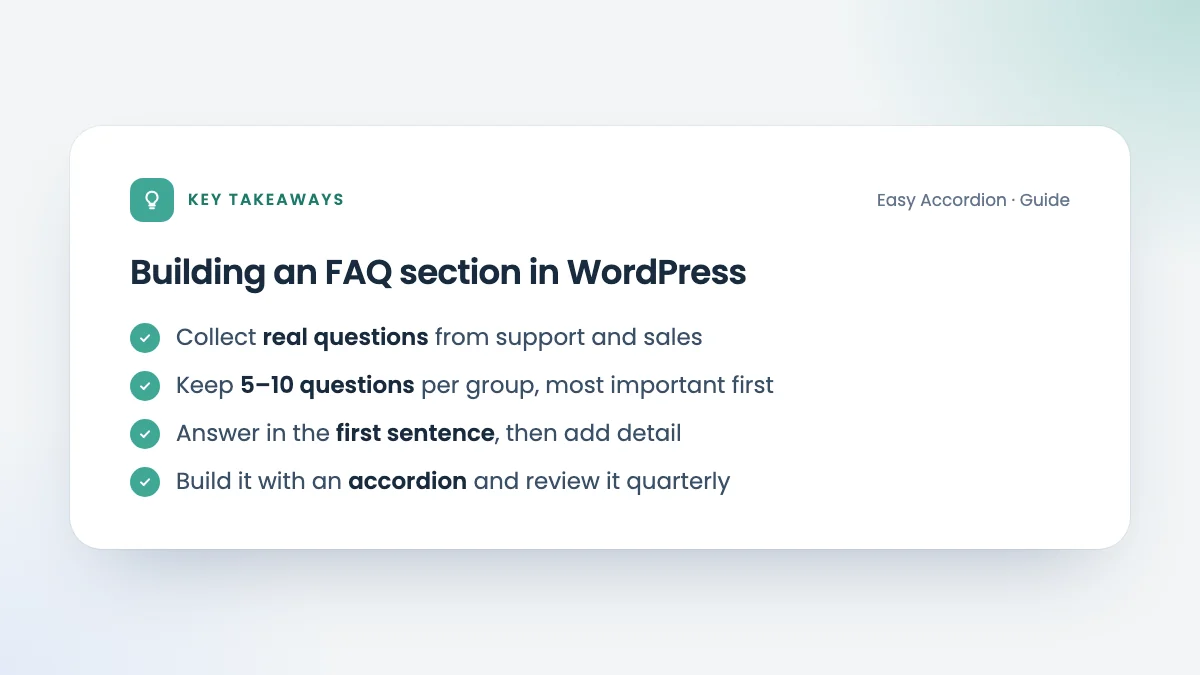
- Start with the direct answer in the first sentence: “Yes, within 30 days.”
- Add the detail that matters: how, when, any limits.
- Link to the full page if there is one, such as your refund policy.
Keep answers to two to four sentences where you can. Short answers are easier to read on a phone and easier for search engines to reuse.
Tip: Avoid answers that only say “See our terms”. Give the answer, then link to the terms for the detail.
Step 4: Build the FAQ with an accordion
An accordion keeps every question visible while hiding the answers until someone needs them. To build it:
- Insert the Accordion block where the FAQ should go.
- Type the first question in the header, and the answer in the panel.
- Click Add Accordion for each new question.
- Select the main block and choose a Heading Tag that fits your page, usually H3 under an “FAQ” heading.
For a typical FAQ, turn on Allow all items to be closed so visitors can fold everything away, and leave multiple items open off so the list stays tidy. A plus and minus icon on the right is the convention most people recognise. The documentation has the same recipe with every setting named.
Step 5: Make answers easy to reach
A few details make a big difference:
- Open the most important answer on load with Make it active on load, so the page never looks empty.
- Add an FAQ heading above the accordion (for example “Frequently asked questions”) so readers and screen readers know what the section is.
- Link to the FAQ from places where people hesitate, such as the pricing table or the checkout page.
If your FAQ grows past 15 or 20 questions, consider instant search and Load more, which are part of Easy Accordion Block Pro. You can try them on the instant search demo.
Step 6: Help search engines understand it
Search engines read FAQ content like any other text, including text inside accordions. To describe your questions and answers explicitly, you can add FAQ schema (FAQPage structured data). With Easy Accordion Block Pro this is one switch in the block sidebar. We cover it fully in the next post, on FAQ schema in WordPress.
Step 7: Keep it up to date
An outdated FAQ is worse than none. Review it every few months:
- Remove questions nobody asks any more.
- Update answers when prices, policies or features change.
- Add new questions from recent support tickets.
FAQ section in WordPress: a checklist
| Check | Why it matters |
|---|---|
| Questions use customer language | Visitors recognise their question at a glance |
| Five to ten questions per group | Short lists are easier to scan |
| Direct answer in the first sentence | Readers get the answer without reading everything |
| Correct heading tags | Clear page outline for screen readers and search engines |
| Important answer open on load | The section never looks empty |
| Reviewed every quarter | Answers stay accurate |
FAQ ideas by page type
| Page | Questions worth answering |
|---|---|
| Product page | Sizing, materials, compatibility, delivery time, returns |
| Pricing page | What each plan includes, renewals, refunds, upgrades |
| Service page | Process, timeline, what you need from the client, cost |
| Event page | Location, parking, tickets, accessibility, refunds |
| Course page | Prerequisites, duration, certificates, access period |
Mistakes to avoid
- Writing questions nobody asks. “Why is our product the best?” is marketing, not a question. Visitors notice.
- Hiding essential information. If everyone needs to know it, such as the price, show it on the page, not only in the FAQ.
- Copying the same FAQ everywhere. Questions should match the page they sit on.
- Answers that only link elsewhere. Give the answer first, then the link for detail.
- Letting it go stale. Set a reminder to review the FAQ when prices or policies change.
Frequently asked questions
Where should an FAQ section go on a page?
Near the point where people hesitate: under a pricing table, at the end of a product page, or before a sign-up form. A dedicated FAQ page also helps, but short FAQs on the pages that need them often work better.
How many questions should an FAQ have?
Five to ten per section is a good range. If you need more, group them under headings or add search so visitors can filter the list.
Can I add images or buttons to an FAQ answer?
Yes. Each accordion panel is a normal block canvas, so you can add images, buttons, lists or tables to any answer.


Leave a Reply
You must be logged in to post a comment.